My AI-written plugin ran with zero errors and still produced the wrong image. If I had trusted the compiler instead of my own eyes, every vertical video I exported would have looked like it was shot through a sandstorm.
This article is an honest breakdown of what happens when a video creator with zero programming background uses AI to build a real, GPU-accelerated plugin for DaVinci Resolve. By the end, you will know how to break a complex creative tool into plain-language prompts, why "silent bugs" are the biggest trap for non-coders, and the exact verification checklist you can use to audit AI-built software without knowing how to read every line of code.
What I Wanted to Build—and Why I Had to Build It Myself
I spend a large part of my week editing and color-grading video in DaVinci Resolve for both horizontal YouTube projects and vertical 9:16 TikTok clips. Over time, I got tired of rebuilding the same multi-node grading trees just to get a cohesive analog film character.
Dialing in one film look usually meant stacking separate nodes for color, contrast, grain, halation, bloom, print tone, and borders—and readjusting everything between 16:9 and 9:16 timelines.
What I wanted was a single, self-contained plugin panel where I could pick a film stock, tweak grain, halation, bloom, film print tone, and frame borders in one place, and move on with my edit.
The catch? I am not a software engineer. I cannot write C++ or GPU shader kernels from scratch.
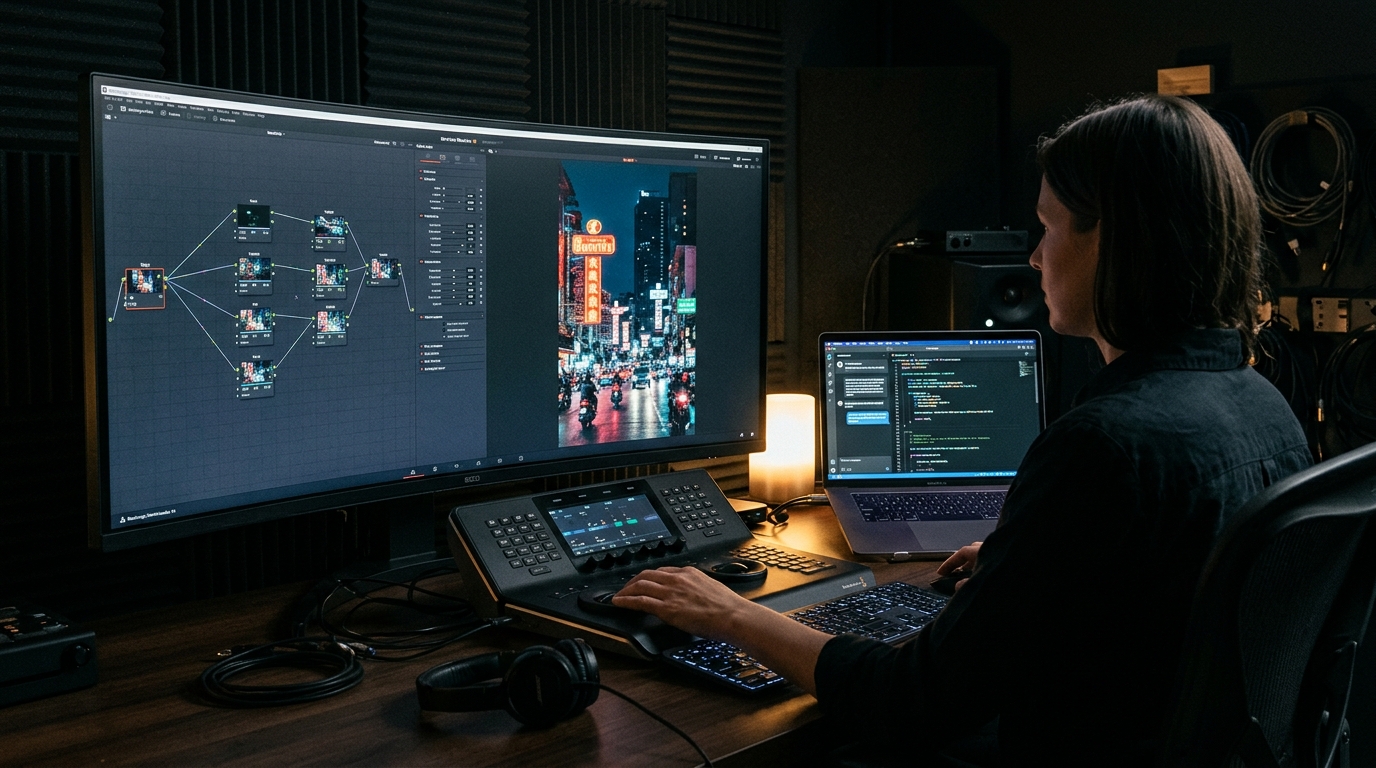
Instead of spending years learning systems programming, I decided to test how far plain-language AI collaboration could go. Over four days, I worked with AI to build JOHNWICK.TH Film Look—a native macOS plugin accelerated on Apple's Metal GPU framework. The finished tool ended up at roughly 2,551 lines of C++, packing 41 film-stock looks, 15 presets (including a custom preset tuned for night shoots called "Neon Bangkok"), and unified controls for grain, halation, bloom, film print emulation, and borders.
How a Non-Coder Prompts AI to Write 2,551 Lines of C++
If you open an AI chat window and type, "Write me a complete DaVinci Resolve film emulation plugin with 41 looks and GPU acceleration," you will get a broken, uncompilable mess.
When you don't know how to code, your superpower is not syntax—it is domain clarity and sequencing. Here is the workflow that actually worked across those four days:
1. Describe Visual Behavior, Not Code Architecture
I didn't try to fake computer-science jargon. Instead, I described what happens to light and color in terms a colorist uses: how halation should bleed warm red-orange around high-contrast neon signs, how highlight bloom should soften edges without lifting the black floor, and how shadows should roll off on different film stocks. Then I asked the AI to translate that visual behavior into mathematical operations inside the plugin pipeline.
2. Slice the Project Into Tiny, Testable Layers
We never built two major features at the same time. The build moved in strict stages:
- Get a bare-bones plugin shell to load inside DaVinci Resolve without crashing.
- Add a single color transformation and verify it on a test clip.
- Layer in the film-stock matrices and preset selector.
- Add spatial effects—grain, halation, bloom, and frame borders—one module at a time.
- Move the heavy pixel processing onto Metal GPU acceleration so playback wouldn't stutter.
3. Lock Working Versions Before Touching Anything New
Whenever a build worked in Resolve, I saved a backup before adding the next slider so the AI couldn't accidentally break earlier functions.
The Vertical Grain Bug: Why "Zero Errors" Is Still Dangerous
The most important lesson of the four-day build happened when I tested the plugin on a vertical 1080×1920 clip for TikTok.
From a technical standpoint, the code was flawless. The C++ compiler threw zero errors and zero warnings. The plugin loaded smoothly in DaVinci Resolve, Metal GPU acceleration ran fast, and every slider responded in real time.
On a horizontal 1920×1080 timeline, the film grain looked tight, organic, and cinematic.
Then I dropped the exact same preset onto a vertical 1080×1920 timeline. Instantly, the footage looked wrong. The film grain was chunky, blotchy, and way too coarse—almost like a low-resolution security camera.
Why did that happen when there were no code errors?
When I asked the AI to inspect how it had written the grain scaling math, we found the culprit: the AI had tied the grain size calculation to the frame height.
In standard horizontal HD video (1920×1080), the frame height is 1,080 pixels. But when you rotate the canvas to vertical HD video (1080×1920), the frame height jumps to 1,920 pixels. Because 1920 ÷ 1080 is roughly 1.78, the plugin was silently scaling the film grain 1.78 times larger on every vertical video!
The computer didn't consider that an error because 1920 is a valid number and the math executed cleanly. Only a human creator looking at the actual image on a monitor could spot that 35mm film grain shouldn't inflate just because the camera was turned sideways.
The fix was simple once we diagnosed it: I instructed the AI to calculate grain scale relative to the shorter side of the frame (min(width, height)) instead of the frame height. That way, a 1920×1080 horizontal clip and a 1080×1920 vertical clip both anchor their grain math to 1,080 pixels, keeping the texture identical across formats.
A Non-Coder's Checklist for Auditing AI-Written Tools
Because you cannot audit AI code by reading every pointer and shader kernel yourself, you have to audit the outputs systematically. Here is the checklist I now use whenever I build or update a tool with AI:
- Test extreme aspect ratios immediately: Never test only on a standard 16:9 clip. Load a 9:16 vertical clip, a 1:1 square clip, and a 4K timeline right away to see if spatial effects (grain, blur, halation, borders) scale consistently.
- Push every slider to 0% and 100%: AI often writes formulas that look fine at default middle values (like 50%) but clip, invert colors, or break when pushed to the minimum or maximum limit.
- Feed it edge-case footage: Test pitch-black shadows, blown-out neon highlights (our "Neon Bangkok" preset was born from testing harsh street lighting), and flat log footage versus Rec.709 footage.
- Compare A/B frames at 200% zoom: Toggle the plugin on and off while zoomed in on fine details like skin texture and text edges to make sure the tool isn't introducing unwanted color shifts when sliders are zeroed out.
- Ask AI to explain its own math in plain English: Before accepting a visual effect formula, ask: "In plain language, what dimension or variable controls the size and intensity of this effect?" That single question exposes bad assumptions—like scaling by frame height—in seconds.
The Honest Limitations of Building Software With AI
It is tempting to turn a story like this into a hype post claiming that programmers are obsolete. That is not true, and pretending otherwise sets people up for frustration.
Here are the real limitations you need to know before you try this:
- AI has zero visual taste: AI knows the textbook formula for a blur or a film matrix, but it cannot see whether a skin tone looks sickly green or whether halation feels pleasingly cinematic versus cheap. You have to supply 100 percent of the aesthetic judgment.
- Debugging requires patience when things break silently: When a compiler throws an error message, you can paste the error back into the AI and it will usually fix it. When there is no error message—just a subtle visual artifact on screen—you have to play detective and describe the symptom clearly enough for the AI to locate the logic flaw.
- Maintenance and OS updates are on you: Native plugins depend on host application SDKs and operating system graphics APIs. What compiles today on your machine may need adjustments when a major software update rolls out.
- [JOHN: เติมข้อจำกัดที่เจอ]
My take
Building JOHNWICK.TH Film Look changed how I look at software. For my entire career as a video creator, whenever a tool didn't work the way I wanted, my only options were to buy an expensive third-party plugin, build a clunky workaround, or complain about it.
Now, there is a fourth option: describe the exact tool that fits my workflow and build it.
Does AI replace real software engineers? Not even close. A professional C++ graphics engineer understands memory management, cross-platform compatibility, and low-level optimization at a depth I simply don't have.
What AI does unlock is personal, hyper-specific tooling for domain experts. If you deeply understand your craft—whether that is color grading, audio mixing, or production scheduling—you already know what good output looks like. AI supplies the syntax; your eyes and experience supply the quality control.
Quick Summary
- Start from a real workflow bottleneck: I built a 2,551-line C++ DaVinci Resolve plugin in 4 days (with 41 film looks, 15 presets, and Metal GPU acceleration) to replace repetitive node trees.
- Work in small, locked increments: Describe visual outcomes in plain language and test one feature at a time.
- Never trust "zero errors" alone: My plugin compiled cleanly yet scaled grain 1.78x too large on 1080×1920 vertical video because the AI anchored the math to frame height instead of the shorter frame edge.
- Your eyes are the compiler: Domain expertise and visual inspection are what turn AI-generated code into a reliable tool.
What would you build for yourself if you could describe it in plain language?